Pocket Option verification is one of those steps that looks routine on paper and turns into the single biggest friction point in practice. Having spent time digging through the broker’s own AML/KYC policy, dozens of WikiFX exposure reports, and Trustpilot patterns, I’ll be direct: the document checklist is the easy part. The timing of when verification gets demanded, and what happens when it stalls, is where most of the real risk sits.
Requirements & Documents
Verification Requirements and Documents to Prepare
Why Pocket Option Requires Verification
Pocket Option frames KYC as standard anti-money-laundering compliance, and its policy gives the broker broad discretion to request documents[1] at any time. The policy says verification is not mandatory unless the company specifically asks, but it also confirms that bank transfers and most withdrawal flows trigger a full name-and-address check.
Here’s the part the broker doesn’t advertise. Pocket Option operates without recognized financial regulation, registered in Costa Rica per WikiFX, with the page flagging high potential risk and a low score driven by unresolved client complaints. That changes the calculus. KYC at a regulated broker is a procedural box-check. KYC at an unregulated broker is the single chokepoint where funds can stall, so getting it right the first time matters more, not less.
One more thing to confirm before going through any of this: Pocket Option does not provide service to residents of the US, UK, EEA, Israel, Japan, Philippines, or Brazil. If I’m based in one of those regions, no amount of clean documentation fixes the underlying eligibility problem — verification can pass and withdrawals can still be refused on access grounds.
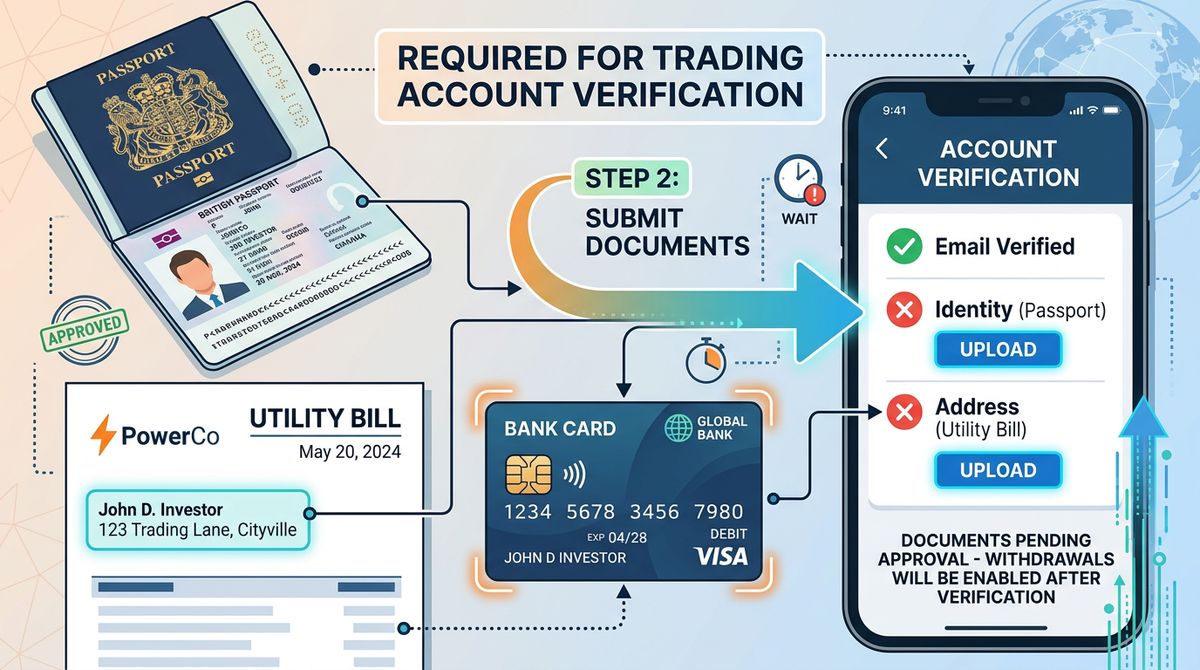
Documents I Need to Prepare Before Starting
The accepted document categories are consistent across Pocket Option’s own policy, video tutorials, and independent guides. What varies is which ones the broker actually demands, and that depends on country, payment method, and transaction size.
| Category | Accepted Documents | When Required |
|---|---|---|
| Identity | Passport, driver’s license, national ID card, residence permit | When requested; full name/address checks for bank transfers |
| Address | Utility bill, bank statement, government address certificate (dated within 3 months) | Bank transfers or when requested |
| Selfie | Photo holding ID close to face | On request, especially flagged accounts |
| Payment | Front/back of bank card with masked digits | Card deposits and withdrawals |
Image quality is the silent killer of verification submissions. Pocket Option’s AML policy[2] allows it to request ID and address documents; for image quality and accepted file formats, I follow the exact instructions shown in the live verification panel. Clear color images with all four corners visible, no edits, no glare, and no cropping are the safest choice.
One rule that gets people’s accounts blocked: third-party documents are prohibited. Pocket Option has publicly stated it may validate authenticity directly with issuing authorities, and accounts caught using someone else’s ID get terminated.
Identity Documents Accepted
Passports are the cleanest option because they require only the photo page upload. Driver’s licenses and national IDs require both front and back, uploaded as separate images. Residence permits work but are slower to clear review in my observation, likely because reviewers see fewer of them.
Proof of Address Documents
Utility bills and bank statements both work, but they must be dated within the last three months and show the same name and address on the Pocket Option profile. Per the broker’s policy, this becomes mandatory for bank transfer deposits and withdrawals.
Selfie and Liveness Requirements
The selfie is a photo holding the ID close to the face, clearly visible. Blurry, dark, or angled selfies are the top trigger for stuck reviews. Trustpilot reports include selfie verifications sitting in “Verification in process” for days while withdrawals stall, so getting this shot right matters.
Verification Steps
How to Complete Pocket Option Verification: Step-by-Step
Step 1: Confirm My Email and Complete the Profile
- Open the registered inbox and click the confirmation link sent at signup.
- Log into Pocket Option and click the profile icon in the upper right.
- Open the Profile section and fill in first name, last name, date of birth, and phone number.
- Match every field exactly to how the data appears on the ID I plan to upload.
Mismatches between profile data and document data are the leading cause of silent rejection. If the passport says “Jonathan” and the profile says “Jon,” that’s a rejection.
Step 2: Open the Verification Section in My Profile
Inside the Profile area, navigate to the identity status or verification panel. A green badge appears next to verified items. Status indicators show “Not Verified,” “In Process,” or “Verified,” and these are the only signals the platform gives before review completes.
Step 3: Upload My Identity Document
- Select the country of residence from the dropdown.
- Choose the document type that matches what I’m uploading.
- Enter the document number exactly as it appears.
- Upload the front image, then the back image if required.
- Confirm validity (the document must be current; check whether the live form requires any additional validity period).
Choosing the Right Document Type
Selecting “passport” while uploading a driver’s license guarantees rejection. The reviewer’s checklist is type-specific, and a mismatch fails automatically.
Image Quality Standards That Pass Review
Shoot in natural light on a dark, flat surface. All four corners must be visible. No fingers covering text. No glare on holograms. Native phone camera resolution is fine. Avoid scanner apps that compress or “enhance” images, since edited files can fail authenticity checks.
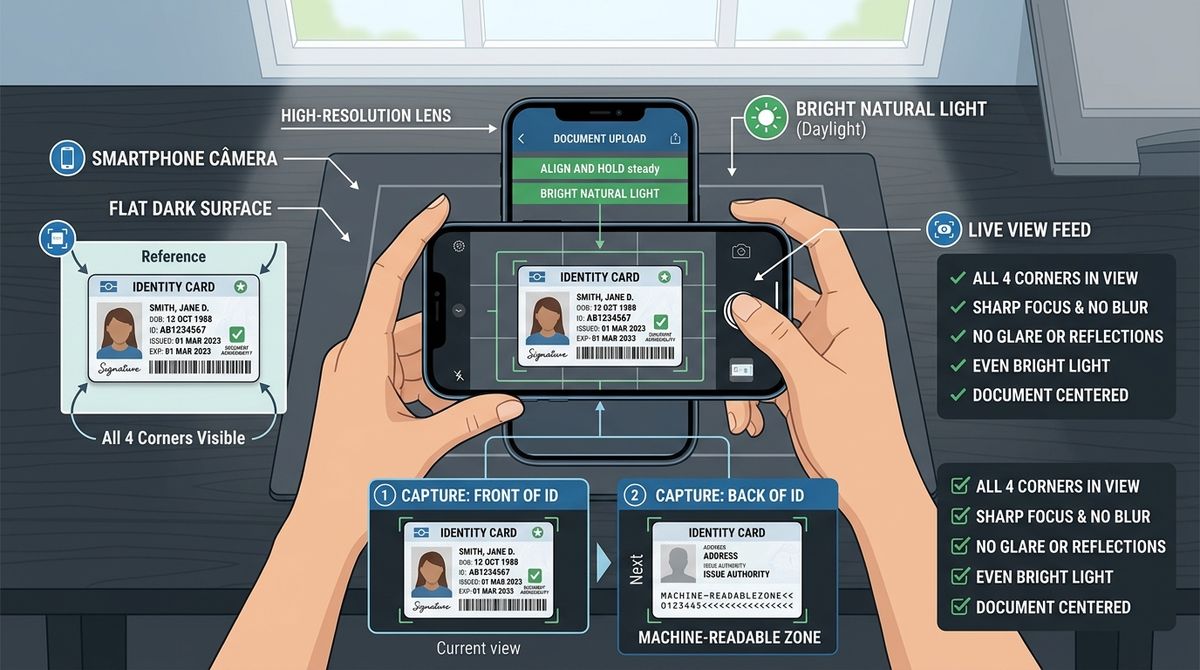
Step 4: Submit the Selfie Verification
If requested, the platform prompts for a selfie holding the ID next to the face. Both the face and the document text must be clearly readable in a single frame. Use front-facing camera, hold the ID at chest height angled slightly toward the lens, and keep the background plain.
This step bottlenecks more accounts than any other. Aggregated patterns from Trustpilot and Reddit threads show selfie reviews stuck for multiple days as a recurring complaint. These are individual experiences, not verified facts, but the pattern is consistent enough to plan around. Submit a clean shot the first time.
Step 5: Add Proof of Address if Requested
This triggers most often for bank transfer activity or when an account flags for additional review. Upload a utility bill or bank statement dated within three months, showing the same name and address as the profile. Same image quality rules apply: color, all corners visible, no edits.
For more on how payment methods interact with verification, the supported funding options determine which proofs the broker will ultimately demand.
Step 6: Verify My Bank Card or Payment Method
If I deposited by card, card verification is its own step:
- Photograph the front of the card with the card number partially masked — typically only the last four digits are visible, with the middle digits covered. Follow the exact masking instructions provided in the Pocket Option verification panel, as requirements can vary.
- Photograph the back with the CVV covered.
- Ensure the cardholder name and signature are visible.
- Upload both images.
This step gates card-based withdrawals specifically. Skipping it means deposits work but withdrawals don’t.
Step 7: Track Status and Wait for Review
Status messages move from “Pending” to “In Process” to “Verified” or “Rejected.” Email notification typically lands when status changes. Platform tutorials indicate a best-case review of around 12 hours for clean submissions. Third-party review sources report typical ranges of 1 to 10 business days, with some accounts citing delays up to 30 working days in complex cases. The payment policy §2.3[3] says identification should be completed within 10 business days of the company’s request, extendable to 30 working days in some cases; the shorter figures above are experience-based estimates, not guarantees.
Processing Times
How Long Pocket Option Verification Actually Takes
Document upload itself takes about 5 minutes. Review is where time bends. The “happy path” is roughly 12 hours for clean submissions on small, established accounts. The realistic range stretches to several business days when the queue is backed up or the account has any flag attached. The payment policy allows up to 30 working days in some cases.
Timing correlates with three things in the data: account age, payment method (bank transfer takes longer), and whether the verification was triggered by signup or by a withdrawal request. Verification triggered at withdrawal time consistently takes longer, which matches the broader pattern I described at the start.
Delays & Rejections
Verification Delays, Rejections, and How to Resolve Them
Common Reasons Verification Gets Delayed or Rejected
Mismatched Profile and Document Data
Name spelling differences, date format flips (DD/MM vs MM/DD), middle name inclusion or omission, and address mismatches between profile and proof-of-address documents all trigger rejection. Reviewers don’t always explain which field failed.
Poor Document Image Quality
Cropped corners, glare on laminated IDs, low resolution, third-party scanner edits, and PDFs generated from photos all increase rejection odds.
Third-Party or Borrowed Documents
Pocket Option’s policy authorizes contacting issuing authorities to confirm authenticity, and the broker has publicly stated it blocks accounts caught using someone else’s documents. There is no path back from this.
Withdrawal-Triggered KYC Surprises
Aggregated user reports across WikiFX exposures and Trustpilot show a recurring pattern: KYC is forced at withdrawal time, then documents are rejected without specific reasons, then the account is restricted. These are individual experiences and not verified facts, and incentivized or sock-puppet reviews exist on both sides of the broker’s review pages, but the pattern repeats often enough to take seriously. If verification is going to fail, it’s most likely to fail here.
Support Backlogs and “Verification in Process” Loops
Selfie verifications stuck in process for days, paired with stalled withdrawals, are among the most-reported issues. Support responses are described as templated and slow during these stalls.
What to Do if My Verification Is Stuck or Rejected
- Re-upload with cleaner images, fixing the specific failure mode if the rejection message identifies one.
- Open live chat and ask for a specific reason in writing.
- File a support ticket, attach screenshots of every upload, and save the ticket reference.
- Screenshot every chat session and email response. Timestamps matter if this escalates.
- If the stall connects to a withdrawal, document the withdrawal request ID and amount.
For accounts that hit a hard wall, the playbook for restoring locked accounts and the steps for resolving cash-out issues overlap heavily with KYC disputes, since the same support queue handles all three.
Document Privacy Risks
Risks I Weigh Before Submitting Sensitive Documents
The broker’s regulatory status changes the risk profile of submitting a passport scan and selfie. WikiFX lists no valid regulation. Costa Rica registration provides no investor protection. User reports include withheld balances in the range of thousands to tens of thousands of dollars, accounts blocked after large deposits, and KYC rejections without explanation. These are individual, unverified claims — specific figures cited in reports vary and have not been independently confirmed.
Practical posture: keep deposit sizes small relative to risk tolerance, complete verification before depositing anything substantial, and verify the broker’s current standing on official regulator sites before scaling up. My complete Pocket Option broker assessment places those verification risks in the wider context of regulation, withdrawals, and platform reliability. For the bigger picture on broker trustworthiness, the safety evaluation framework covers what to check beyond KYC.
After Verification
What Unlocks After I'm Fully Verified
Verified accounts can avoid one KYC-related withdrawal delay and may unlock methods or limits shown in their dashboard, but the payment policy[3] still allows up to five business days for the broker’s withdrawal step. Most importantly, verified status removes one common excuse for stalled cashouts. It doesn’t remove all of them, but it removes that one.
Whether the effort is worth it depends on deposit size. For small accounts running the demo or testing strategies with $50 to $200, the verification process is reasonable. For anyone planning to fund a real trading account at meaningful size, verification is the bare minimum, not the finish line.
FAQs
Frequently Asked Questions About Pocket Option Verification
Can I Trade Before Completing Verification?
Yes. Trading and demo access don’t require verification. Withdrawals may trigger verification, and bank transfers require full name-and-address checks under the AML policy.
What File Formats Does Pocket Option Accept?
The accepted formats are shown in the live upload panel; older tutorials mention GIF, JPEG/JPG, PNG and PDF. I use clear, unedited color images and follow the current on-screen instructions.
Are Screenshots of Documents Allowed?
No. Photos or scans of original documents are required. Screenshots of digital documents are typically rejected as edited files.
Is There a Fee for Verification?
No. Pocket Option does not charge for KYC. The full fee structure covers spreads, withdrawals, and inactivity, but verification itself is free.
What Happens if My Documents Are Rejected Repeatedly?
Re-uploading with cleaner images is the first move. After two failed attempts, contact live chat and request the specific rejection reason in writing. Persistent rejection without explanation is one of the patterns reported in user complaints and warrants documenting the support history.
Can I Use My Phone to Complete the Entire Process?
Yes. The mobile app supports the full verification flow including document upload, selfie capture, and status tracking. Desktop works equally well.